
Work states
running, waiting for confirmation, attention needed, done
Mapped to yellow steady, yellow blink, red blink, and green steady signals.
AI Signal Light setup guide
A practical setup guide for a rechargeable Bluetooth desk light that shows running, waiting, done, and attention-needed states with red, yellow, and green signals.
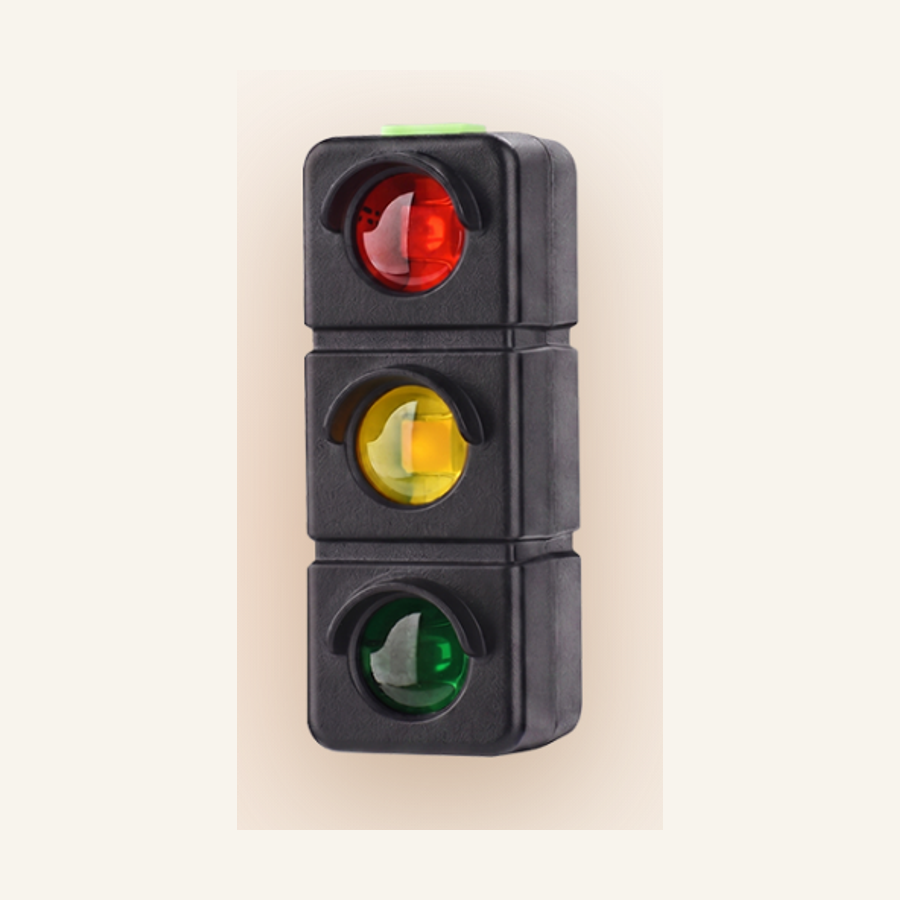
Work states
running, waiting for confirmation, attention needed, done
Mapped to yellow steady, yellow blink, red blink, and green steady signals.
Connection
Bluetooth 5.3, about 20 m rated range
Walls, furniture, and interference can reduce real range.
Power
400mAh battery, USB-C charging
Listed runtime is about 4 to 5 days at 8 hours per day.
Platforms
Windows and macOS desktop app
Linux, phones, and tablets are not currently supported.
The core value is not decoration. AI Signal Light makes background AI work visible while you code, review, write, or step away from the desk.
The light is hardware, but the practical workflow depends on the companion app sending light commands over Bluetooth.
The compact body and red, yellow, and green LEDs are best used where you can notice the state without turning it into another screen to watch.
Current compatibility notes give useful boundaries, and the site keeps those boundaries visible before checkout.
AI Signal Light depends on Bluetooth pairing, a desktop app, and color rules that map background work to light states. Test the full chain once while you are still at the desk.
Use the USB-C port for charging. The port is not the computer connection.
Run the AI Signal Light desktop app on Windows or macOS and allow it to stay active in the background.
Connect the AI Signal Light unit through the local control panel and confirm it appears in the device list.
Enable the integration for the desktop AI tool you use, then confirm that the light changes as expected.
Use manual commands or a small test task to confirm running, waiting, attention-needed, and done signals before relying on it during a real session.
AI Signal Light is for Windows and macOS desktop AI workflows. Confirm requirements such as Linux, phone, tablet, certification, waterproofing, or cloud behavior before checkout if they matter to your setup.
Compatibility, setup, and practical limits for a small Bluetooth desk light used with background AI workflows.
AI Signal Light is a rechargeable Bluetooth desk light for background AI work. It turns running, waiting, done, and attention-needed states into red, yellow, and green signals so you do not have to keep checking the screen.
Current compatibility notes list Claude Code, Codex, Cursor, Copilot, and Qoder. Confirm your exact desktop setup before relying on it for critical work.
The listed mapping is yellow steady for running, yellow blink for waiting on your confirmation, red blink for attention needed, and green steady for done.
No. The USB-C port is for charging only. The computer connection is wireless over Bluetooth.
The listed range is about 20 m over Bluetooth 5.3. Real-world range can be lower when walls, furniture, metal surfaces, or wireless interference are present.
The listed battery is 400mAh and rated for about 4 to 5 days when used 8 hours per day. Actual runtime depends on brightness, blink patterns, and connection behavior.
Current setup notes say one computer can connect to multiple AI Signal Light units. A reliable maximum count is not listed.
The listed platform support is Windows and macOS. Linux, phones, and tablets are not currently supported.
The desktop app is designed to run in the background and start with the computer. The light depends on that local app for signal updates.
The desktop app shows connected devices, per-light controls, and manual test commands so you can confirm each color before using it during work.
AI Signal Light includes a back clip and elastic strap for simple placement around a desk setup. Confirm your exact mounting surface before relying on it.
The listed body size is about 25 x 67 x 21 mm, compact enough for a monitor edge, desk shelf, or nearby stand.
Cloud behavior is not currently specified. Confirm setup requirements before relying on offline-only or cloud-free use.
CE, FCC, RoHS, waterproofing, drop resistance, and similar compliance properties are not currently listed.
Package details include the AI Signal Light device, a charging cable, and clip or strap mounting hardware. Any bundle-specific extras should be confirmed at checkout.
It is for people who run AI tools in the background and want a physical desk signal for work that is running, waiting, done, or needs attention.